Linux with Intune

Linux is quite the diverse OS, when it comes to education, we usually use it to host a variety of services/applications. This can be Network Monitoring solutions such as LibreNMS or Log Aggregators such as Graylog. When hosting these services it can be beneficial to have management over them, for example Intune.
When it comes to setting up Intune for Linux what are we actually getting out of it? First we are getting visibility of that system into our MDM (Intune), this doesn't seem like a huge thing but for larger schools having your devices show up in multiple systems gives us more eyes on whether or not we are keeping up with the updates/installs/uninstalls needed to maintain that device. Second is that we can automate with scripting from a central location if needed, we can utilize shell scripting to deploy packages such as AppArmor or push updated Cron jobs.
Last thing I want to mention is that we are using Ubuntu Desktop 24.04, we will need a GUI to log into Company portal to register yourself.
From the terminal on the machine, you will want to do the following:
Update your System First
sudo apt update
Install curl if you don't already have it
sudo apt install -y curl gpg
Download the Microsoft signing key
https://packages.microsoft.com/keys/microsoft.asc | gpg --dearmor > microsoft.gpg
Install the keys under the keyring
sudo install -o root -g root -m 644 microsoft.gpg /usr/share/keyrings/microsoft.gpg
Remove the temporary key
sudo rm microsoft.gpg
Add the Microsoft repository to Ubuntu
sudo sh -c 'echo "deb [arch=amd64 signed-by=/usr/share/keyrings/microsoft.gpg] https://packages.microsoft.com/ubuntu/$(lsbrelease -rs)/prod $(lsbrelease -cs) main" > /etc/apt/sources.list.d/microsoft-ubuntu-$(lsbrelease -cs)-prod.list'
Update your System again
sudo apt update
Download and install the Intune Portal
sudo apt install -y intune-portal
Reboot your device to finish the install
sudo reboot
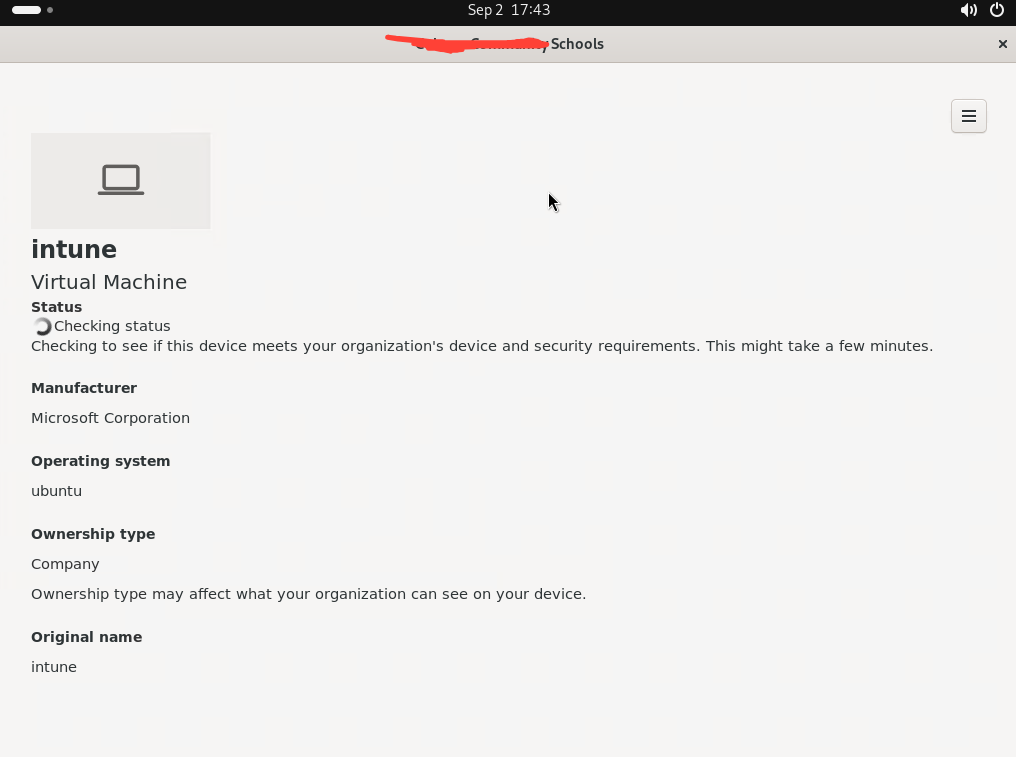
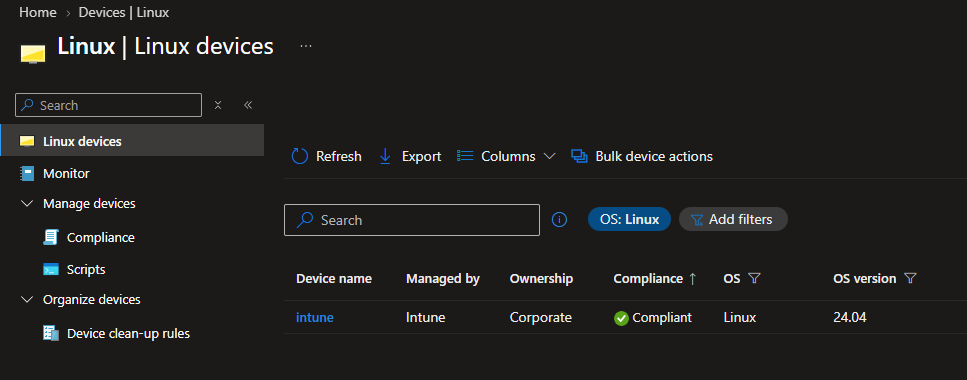
Now that we have our device in Intune and logged into, we can start to push out some scripts/compliance policies! We can start with a simple update script to make sure we are staying up to date with our system updates!
From Intune we can browse to Devices-> Linux -> Scripts -> Add, for this script you want to run as root, depending on other scripts/deployments you will have to consider the two options. Next we will setup this up to run every 12 hours and try again once. We can either upload a shell script we've created before or add lines below.
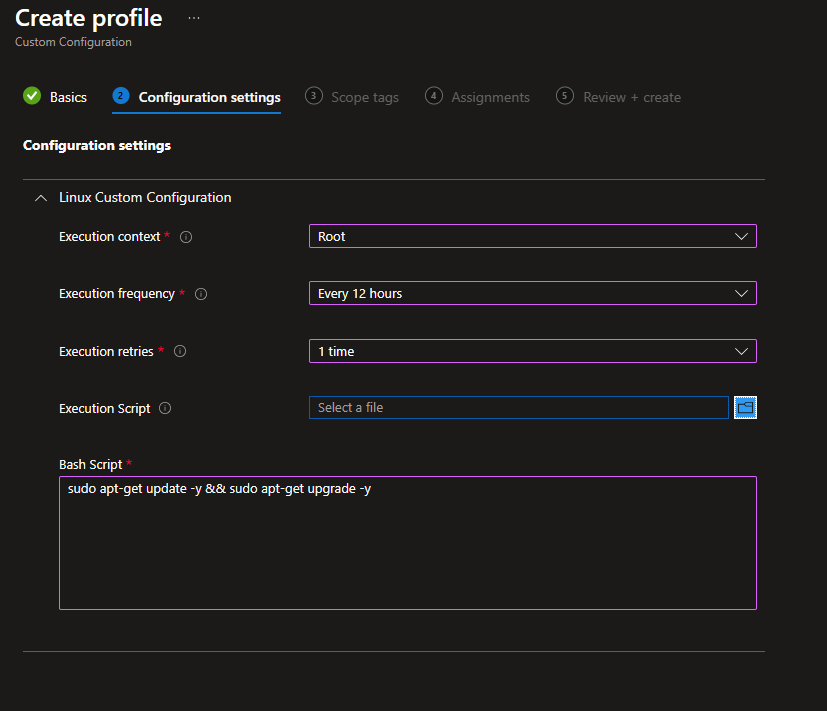
Lastly since we only have one device, we can deploy it to all devices or create a unique group. And there you go, an automated script that will update our system! From the script deployment we can install whatever we want with the right lines of code!